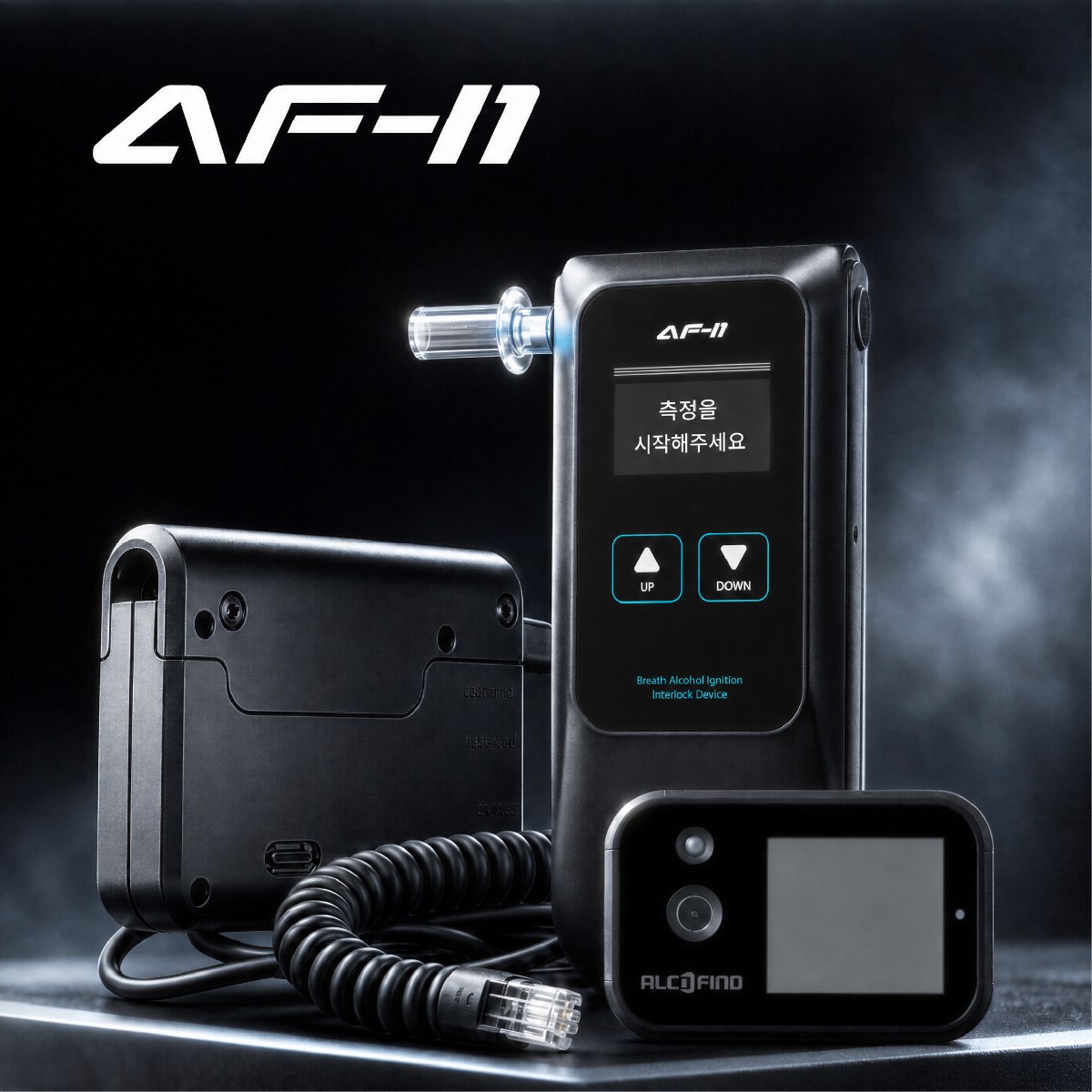
Safety managers and equipment staff who connect a breathalyzer to a PC to manage test results may find that the computer recognizes the device when the cable is plugged in, yet the result list is empty. PC recognition here means the computer has detected the connected breathalyzer as a device. It does not mean that the process of the program reading the test records stored on the device and displaying them on screen is also working normally.
In this case, the purpose of the support request is not to judge the cause of the fault in advance, but to communicate accurately where results stop appearing and the range of records that needs to be checked. Writing down the connection status, the program's reading of data, and the display of results separately reduces repeated checks during support. Above all, it helps you avoid deleting or resetting original data before you have confirmed whether records have actually been lost.
Do not treat connection and result display as the same state
After the device is connected to the PC, at least three steps can follow. The first is the PC or program finding the breathalyzer. The second is the program starting to read the test records stored on the device, and the third is the records it has read appearing in the result list or detail screen.
So the phrase "it connects but the results don't show" alone does not tell you where to look. It is best to write down separately whether the program cannot find the device at all, whether data reading starts but does not finish, or whether the list stays empty even after a reading-complete message. Not lumping connection problems and data retrieval or display problems into one keeps the scope of the request from growing unnecessarily.
Also record separately what is shown on the device itself and on the PC. A case where test records for a certain time period are visible on the device but do not appear only in the PC list, and a case where those records cannot be found on the device either, have different starting points for checking. However, the fact that records do not appear on the PC screen alone does not let you conclude that test records have been deleted.
Record the current state before changing original records
When results do not appear, it is best not to try resetting, deleting records, or using unofficial conversion programs first. This is because you have not yet distinguished whether records are missing from the list because of the date or search conditions on the current screen, whether the program failed to read the records, or whether the storage status needs further checking. As actions taken before checking pile up, it can also become harder to judge later which state was the original problem.
In the request, write the date and time period when the problem occurred, when you last confirmed results normally on the PC, and the period of records that do not appear on screen. Writing "morning records were confirmed in the list, but records from the afternoon onward are not displayed" rather than "results have not been showing since yesterday" makes clear what to check. If you recently changed the connecting cable, the PC used, the program, or the connection method, it is best to note that too, along with when you changed it.
When screen captures are needed, prepare them around the parts that show the problem, such as the error message, the program name, and the empty result list. It is appropriate not to share full-screen captures unnecessarily if other employees' test results, work documents, or personal files are visible in them. Masking the needed screens and sending them through an approved channel lets you balance the information needed to check the problem with protecting data.
What should the support request include?
The request does not need to be a long technical report. The key is to set it out so that someone can see on one page which breathalyzer and program were used, at which step checking results stopped, and which time period's results are not showing. The model name and serial number reduce the chance of mixing up guidance for similar products, and the program name and version identify the tool in use.
| Category | What to include in the request | Why it is needed |
|---|---|---|
| Breathalyzer information | Model name, serial number, how it was connected to the PC | To tell whether guidance applies to that device |
| PC and program information | PC used, program name and version, program running status | To see at which process it stopped after the device was recognized |
| What happened | The step where it stopped among recognition, data reading, and result display, and any error message on screen | To separate observed facts from guesses about the cause |
| Range of records to check | When results were last viewed normally, dates and times not showing | To set the range of test records to check during support |
| Recent changes | When the cable, PC, program, or connection method was changed | To check what conditions differed before and after the problem started |
DATECH's official Downloads center lists the ALCOFIND PC software and manuals for each product. However, even files provided by the manufacturer cannot be assumed to apply equally to every model and connection setup. Before installing or reinstalling the program, the necessary order is to confirm whether the materials apply to your current breathalyzer model and how existing test records and settings should be preserved.
Make the request concrete with a hypothetical case
For example, suppose that at one workplace, the result list in the PC program was viewed normally until the morning, but after the breathalyzer was connected in the afternoon, new results stopped appearing in the list. The program found the device and started reading data, but after it finished, the afternoon records were not added to the result list. Whether records for the same time period can be seen on the breathalyzer itself has not yet been checked.
The fact observed in this situation is that "the PC recognized the device and the program started reading data, but the afternoon records were not displayed in the result list." You cannot immediately interpret this as "the records were deleted" or "the PC is broken." A possible action is to note the error message shown on screen, the exact time range of the afternoon records, whether the records were checked on the device itself, and whether the cable or PC was changed that day.
The completion standard in this case is not just that part of the result list shows up again. You need to record separately whether the records for the afternoon period originally reported were actually confirmed, whether any time periods remain unconfirmed, and what actions were taken during checking. If only recent records are displayed again, not every time period that was missing has been confirmed, so record the confirmed range separately.
Reinstall or change settings only after confirming they apply
During troubleshooting, you may be advised to reinstall the program or change settings. In that case, it is best to first confirm how to preserve existing test records and program settings, and whether that action applies to your current model. Opening records with installation files of unclear origin or arbitrary conversion tools can make the state of the data you need to check in the original program even more complicated.
Even when it seems that changing the device's internal settings or modifying the original data is needed, it is appropriate to stop at writing down the current state in the request and passing it on. If you took action following guidance received during support, record the order of the steps you took and how the screen changed afterward. This record is not for settling the cause on your own, but for comparing the range of records that can be confirmed before and after the action.
Judge whether it is resolved by the dates and times confirmed
Even if results start appearing again, you cannot assume all the records that were missing at the time of the request have been confirmed. For example, if only the most recent test results appear in the program, you need to check separately whether the earlier periods suspected of being missing also appear. Writing down the dates and time ranges you have confirmed reduces the chance of treating a state where only some results are confirmed as a full recovery.
Rather than concluding that data does not exist for periods that remain unconfirmed, it is more accurate to leave them as periods that could not be confirmed on the current PC and program. What matters in a support request for a PC connection problem is not complicated technical terms, but clearly separating the device and program used, the step where it stopped, the range of records not showing, and any actions taken on the original records. With this information in place, the next checking steps can be set based on the official software and guidance that apply to the model.